Ever tried to enjoy a peaceful browsing session on your iPhone only to have that pesky VPN pop up like an unwanted guest at a party? It’s like your phone’s way of saying, “Surprise! You’re now in a secure bubble!” While this might sound like a dream for privacy lovers, it can be more annoying than helpful.
Understanding VPN on iPhone
VPNs, or Virtual Private Networks, serve crucial purposes for iPhone users concerned about online privacy and security. These tools can, however, lead to confusion when they activate unexpectedly during browsing sessions.
What Is a VPN?
A VPN encrypts internet traffic and routes it through a remote server. Users gain privacy, as their data becomes unreadable to onlookers. This technology also masks the user’s IP address, which helps maintain anonymity online. Through a VPN, accessing geo-restricted content becomes simpler, as it tricks websites into thinking users are in a different location. Increased security against hackers is another significant benefit, especially on public Wi-Fi networks.
How Does VPN Work on iPhone?
On iPhones, a VPN operates by creating a secure tunnel for data transmitted over the internet. When a user activates a VPN app, it connects to a server, establishing a secure connection. This process involves encrypting data before it leaves the device and decrypting it only upon reaching its destination. The VPN also modifies the device’s IP address, effectively hiding the user’s true location. Automatic reconnections may occur if the connection drops or the device switches between Wi-Fi and cellular, which sometimes leads to unintentional activations. Additionally, specific apps may trigger VPN connections to enhance security during sensitive activities.
Common Reasons for iPhone VPN Activation
Unexpected VPN activation on an iPhone can stem from various factors. Understanding these reasons aids users in managing their devices effectively.
Software Settings
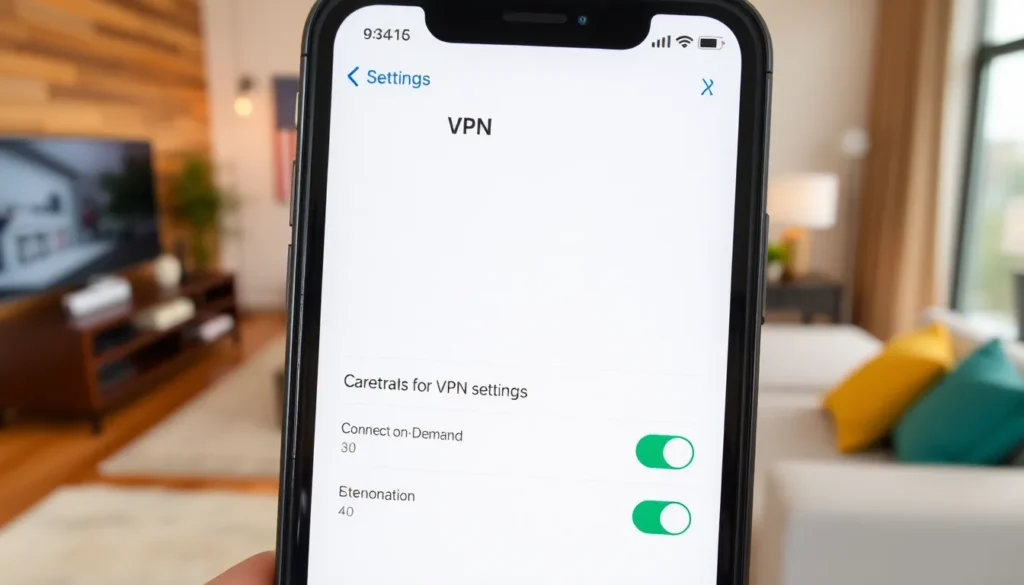
Automatic activation features in iPhone settings often trigger VPN connections. Users might enable “Connect on Demand” or “Always On” options within VPN settings, leading to unintentional activations. Incorrect configurations also contribute to this issue. Checking settings regularly ensures users maintain control over their VPN usage. Keeping VPN apps updated matters, as updates can fix bugs that cause erratic behavior.
Network Conditions
Shifting between Wi-Fi and cellular networks causes many iPhones to activate VPNs. iOS devices may automatically connect to a VPN when detecting an unsecured Wi-Fi network, prioritizing security. Disconnecting from a secure network to an unstable one increases the likelihood of VPN activation. Fluctuating network conditions can prompt VPNs to engage for consistent privacy levels. Users should be aware that certain apps may activate VPNs when network conditions change, ensuring they understand the app functionalities.
Troubleshooting VPN Issues
Addressing unexpected VPN activations on an iPhone involves several steps. By following these guidelines, users can maintain a smoother online experience.
Check VPN Settings
Begin by examining the VPN settings in the device configuration. Users should disable features like “Connect on Demand” or “Always On” if they frequently cause automatic connections. Adjusting these settings helps in controlling unwanted activations. VPN app settings also require attention; ensure the options for automatic connections align with the user’s preferences. It’s beneficial to regularly review the configuration to prevent complications linked to changes in network connectivity.
Update iOS Software
Keeping iOS up to date is crucial for optimal performance. Frequent updates often include enhancements and fixes that can reduce VPN issues. Users should navigate to the device settings and check for available software updates regularly. Installing the latest iOS version can resolve compatibility problems between the device and VPN applications. Enhanced stability from updates contributes to a better overall user experience, minimizing the chances of unexpected VPN activations.
Preventing Automatic VPN Activation
Managing a VPN on an iPhone requires awareness of various settings that can lead to automatic activation. Users can take specific steps to prevent these unintended connections.
Adjusting VPN Preferences
Adjusting VPN preferences helps maintain desired control over activation. Users can navigate to the VPN settings within the iPhone’s settings menu. Disabling features like “Connect on Demand” can prevent the VPN from activating without user consent. Choosing specific VPN protocols may also minimize automatic connections, depending on the scenario. Customized preferences allow greater flexibility when using different networks. Users might also consider selecting a VPN that offers more intuitive control options tailored to individual needs.
Disconnecting Unused VPNs
Disconnecting unused VPNs keeps the device free from unnecessary activation. Users should regularly review the list of installed VPN applications. Identifying which VPNs are not in use allows for disconnection or even deletion to avoid confusion. Unused VPNs can inadvertently trigger connections, especially when changing networks. Ensuring only essential VPNs remain active helps streamline online activities. Users benefit from a clear understanding of which VPNs serve their needs at any given time, ultimately enhancing their browsing experience.
Unexpected VPN activation on an iPhone can disrupt the online experience. By understanding the reasons behind these activations users can take steps to regain control. Adjusting settings and disabling features that lead to automatic connections is essential for a smoother browsing experience. Regularly reviewing installed VPN applications and keeping software updated further enhances device performance. With proactive management users can enjoy the benefits of VPNs without the frustration of unintended activations.